OPNsense
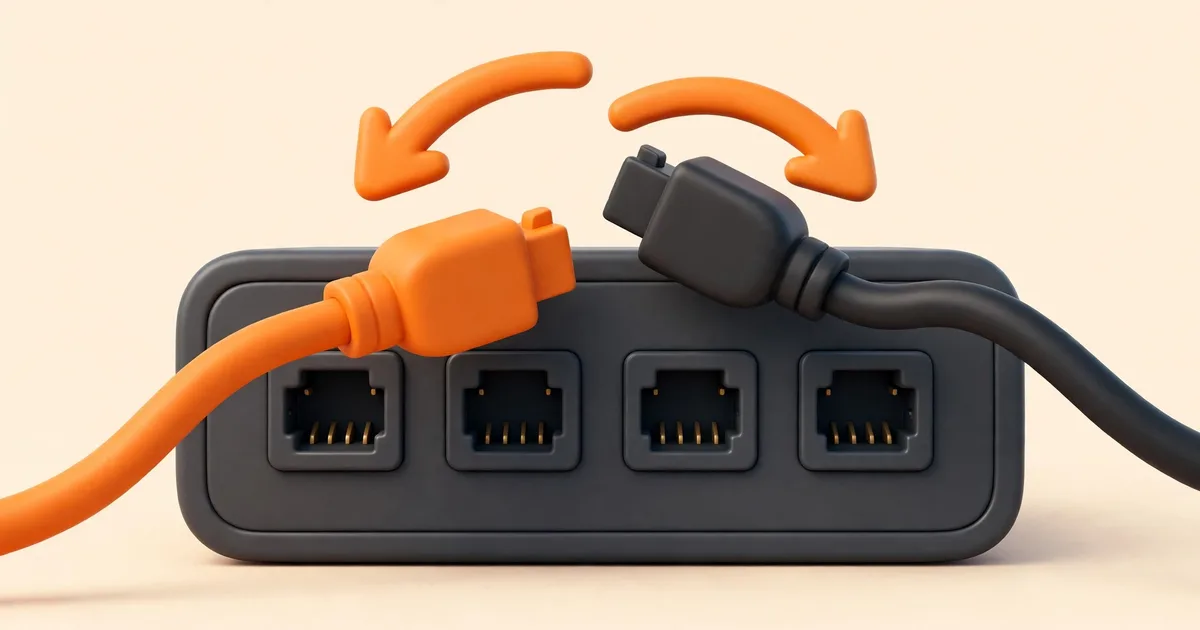
If your LAN and WAN ports are swapped, OPNsense serves your internal network on the wrong socket and sends its own traffic into your LAN: the classic symptoms are no internet access, a web interface that answers on the modem side, or DHCP offers appearing where they should never be. The fix is an assignment change, not a reinstall. You can correct the port roles in the web interface under Interfaces > Assignments, or at the console with menu option 1, and you can prove which physical port is which using link lights and MAC addresses before you change anything.
What "assignment" actually means
OPNsense separates two ideas that are easy to confuse. A physical port is a socket on the machine, driven by a network card, and known to the system by a driver name plus a number. An interface role (LAN, WAN, OPT1, and so on) is a logical job with its own IP configuration, firewall rules, and services. Assignment is the mapping between the two: it says which socket does the LAN job and which does the WAN job.
This separation is good news when ports are swapped. Your firewall rules, DHCP settings, and addresses belong to the roles, not to the sockets. Correcting the assignment moves the roles to the right sockets while the configuration follows the roles, so a careful assignment fix does not require rebuilding rules or re-entering settings.
Symptoms that point to swapped ports
- The web interface answers on the side connected to your modem or provider router, but not from your LAN.
- Computers on your LAN receive no DHCP address, or receive one from a different device than expected.
- The WAN interface shows a private address that belongs to your LAN range, or the LAN interface shows an address handed out by your provider.
- Everything worked until you moved the machine, replaced a network card, or recabled, and nothing in the configuration was changed.
- The console banner lists the LAN address correctly, but plugging a computer into the labelled LAN port gets no connection while another port works.
One symptom deserves urgency: if the LAN role sits on the socket facing your provider or an upstream network, the LAN DHCP server can offer addresses on that network. On your own upstream router's network that is merely confusing; on a provider network it is antisocial and may get your connection flagged. If you suspect a swap, unplug the WAN side cable until the assignment is fixed.
Identify the ports before changing anything
Do not guess. There are three reliable ways to map sockets to system names, and using two of them together removes all doubt.
Link lights and link state
Plug a live cable into exactly one socket and watch the interface list in the web interface (or the assignment screen at the console). The interface whose link state changes, or whose status shows a connection at a negotiated speed, is the socket you just used. Repeat port by port and write the mapping down. This method works even when every cable looks identical, and it also confirms the cable and the switch port at the other end are alive.
MAC addresses
Every network port has a unique MAC address, and OPNsense shows the MAC address of each interface in its overview pages and during console assignment. Appliances usually print per-port MAC addresses on a label; virtual machines show them in the hypervisor's settings for each virtual adapter. Match the printed or configured MAC to the interface in OPNsense and you have a certain identification that does not depend on cables at all.
One cable at a time from a known starting point
Unplug all network cables, then connect only your computer to the socket you believe is LAN. If the web interface answers at the LAN address, that socket holds the LAN role today, whatever its label says. This starting point turns a confusing multi-port problem into a series of single questions.
How ports get swapped in the first place
Understanding the cause helps you check the right thing after future changes. The usual triggers are:
- Hardware changes. Adding, removing, or replacing a network card can change the order in which the operating system enumerates the remaining cards, so a name that meant the left socket yesterday can mean the right socket today.
- Moving to new hardware. Restoring a configuration onto a different machine brings role settings for interface names that may not exist, or may refer to different sockets, on the new box. OPNsense detects the mismatch during a restore and prompts you to fix the assignments rather than rebooting into a broken mapping, which is exactly the situation this guide addresses.
- Virtual machine edits. Adding an adapter, or reordering adapters in the hypervisor, changes which virtual NIC the guest sees in which position. In a VM the MAC address is the ground truth, because you set it yourself in the hypervisor.
- Recabling during other work. The least technical cause and the most common: cables were unplugged for cleaning or a switch replacement and went back in a different order.
Identifying ports in a virtual machine
Virtual machines have no link lights, but they offer something better: certainty. Each virtual adapter has a MAC address that you can read in the hypervisor's VM settings, and each is attached to a specific bridge or network. List the adapters in hypervisor order with their MAC addresses and their bridges, then match the MAC addresses to the interfaces inside OPNsense. The adapter on your WAN bridge must hold the WAN role, and the adapter on your LAN bridge must hold the LAN role. If you run OPNsense on Proxmox, our guides to installing on Proxmox and Proxmox networking cover bridge layout in depth. The same MAC-matching approach works on desktop hypervisors, as described in the VirtualBox and VMware lab guide.
Fixing the assignment in the web interface
When the web interface is reachable, this is the comfortable path:
- Take a configuration backup first. Assignment changes are reversible, but a backup makes them trivially reversible.
- Open Interfaces > Assignments. The page lists each role (LAN, WAN, and any OPT interfaces) with a dropdown showing the physical interface currently assigned to it.
- Using the mapping you verified, set the LAN role to the physical interface that is really your LAN socket, and the WAN role to the one that is really your WAN socket. If the two are simply exchanged, swap their dropdown values.
- Save, then apply the changes when prompted.
- Move no cables during this fix. The whole point is that the roles move to the sockets your cables already occupy.
After applying, the web interface may drop if you were connected through a port whose role changed underneath you. Reconnect to the LAN socket (which now genuinely holds the LAN role) and log in again at the LAN address.
Fixing the assignment at the console
If the web interface is unreachable because of the swap itself, use the console. Log in with root and choose option 1, Assign interfaces. The routine repeats the questions from first boot: it asks about VLANs (answer no unless you are deliberately building them), then asks for the LAN interface name, then the WAN interface name, then any additional interfaces, and finally asks you to confirm the summary before applying it.
Type the names that correspond to the correct sockets, using the MAC addresses shown in the list to be sure. Read the confirmation summary carefully: it is the last chance to catch a mistake before the roles move. After confirming, the services restart with the corrected mapping. If you make a mistake anyway, run option 1 again and correct it; assignment changes do not damage the rest of the configuration.
Do not "fix" a swap by simply exchanging the cables while also changing the assignment. Pick one method, either move the roles in software or move the cables, and verify the result before touching the other. Changing both at once recreates the original problem with extra confusion.
Expect a brief interruption when an assignment change is applied. Services that bind to interfaces, including the DHCP server, the DNS resolver, and any VPNs, restart or reload with the new mapping, and connected devices may need to renew their DHCP leases before they see the corrected network. Do the work at a moment when a few minutes of disruption is acceptable, and warn anyone using the connection. If the interruption stretches on, the likeliest explanation is a client still holding an old lease or a cable in a socket different from the one you verified; work through the identification steps again rather than changing more settings.
Adding further ports (OPT interfaces) and a VLAN note
The same Assignments page is where extra sockets become OPT1, OPT2, and so on: create the assignment, then open the new interface's settings page to enable it and give it its own address configuration. A freshly assigned OPT interface passes no traffic until you enable it and add firewall rules, which is the safe default for a network you have not designed yet.
If you later build VLANs, remember the official guidance: a VLAN is a device created on a parent interface, and the parent itself should stay unassigned while the VLAN device is the thing you assign and configure. Mixing up parent and VLAN assignments is a common cause of "the VLAN gets no traffic", and our VLAN setup guide covers the ordering in detail.
While you are on the Assignments page, give OPT interfaces meaningful descriptions (for example "Guest switch" or "Server rack") when you create them. Roles like OPT2 tell you nothing six months later; descriptions appear throughout the web interface and turn future troubleshooting into reading instead of detective work. You cannot rename the physical driver names, and you do not need to: the description carries the human meaning.
Troubleshooting: symptom, likely cause, fix
| Symptom | Likely cause | Fix |
|---|---|---|
| GUI answers from the WAN side, not the LAN side | LAN and WAN roles exchanged | Swap the two assignments (GUI or console option 1) |
| LAN clients receive addresses from the ISP router | Your computer is plugged into the socket holding the WAN role, bridged to the upstream network | Move the cable to the real LAN socket, or correct the assignment |
| WAN shows a 192.168.x.x address that matches your LAN scheme | WAN socket is cabled into your LAN switch | Recable the WAN socket to the modem or upstream device |
| Nothing changed in software, but ports "moved" after a reboot | A card was added or removed and enumeration order changed | Re-identify ports by MAC address and correct the assignment |
| One port never shows a link | Dead cable, dead switch port, or a faulty NIC | Test the cable and switch port with a known device before changing assignments |
| Restored config on a new machine asks about interfaces | Interface names differ on the new hardware | Complete the assignment prompt, matching roles to the new sockets by MAC |
How to confirm the fix worked
- The interface overview shows the WAN role on the physical interface whose MAC address matches your WAN socket, and the LAN role on the correct socket.
- Link lights and link state agree with your cable positions: LAN linked to your switch or computer, WAN linked to the modem or upstream device.
- WAN holds the expected kind of address (a provider address for DHCP or PPPoE connections, not one of your LAN addresses).
- A computer on the LAN receives a DHCP lease in the LAN range with the firewall as gateway, and can load a website.
- The web interface answers from the LAN side only, and not from the WAN side.
- From the console, option 7 (Ping host) reaches an internet address, confirming the firewall's own path out.
If the roles are correct but the connection is still down, the problem has moved elsewhere: check the WAN settings the setup wizard created (PPPoE credentials and static values are frequent culprits), and if you are changing addresses as part of the repair, follow the lockout-safe order in our guide to changing the LAN IP. Finish by saving a fresh backup labelled with the correct port mapping, and note the mapping on the machine itself.